For many Indian businesses, WhatsApp isn't a secondary channel — it's the main one. The website exists to get someone to tap the green button, and everything after that happens in a chat window.
That creates a measurement problem. Enquiries leave the website before they become conversations, so Analytics can show traffic without showing which pages and campaigns encourage people to contact you.
I'm Hitesh Jaganiya, a digital marketing consultant certified in Google Ads and Google Analytics. This guide explains how to track WhatsApp clicks in GA4 and, just as importantly, what the numbers can and cannot tell you. If you need broader help with measurement and campaign strategy, I also work as a Digital Marketing Consultant in Ahmedabad.
The Limitation to Understand First
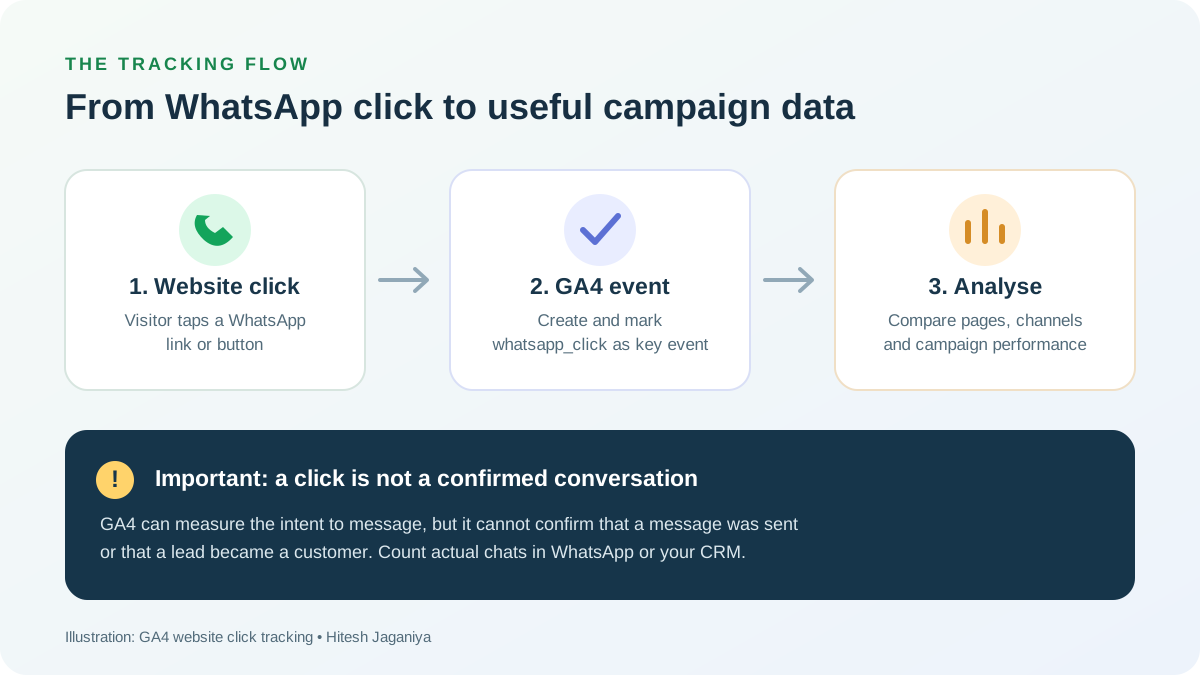
You are tracking clicks on a WhatsApp link, not conversations.
Someone can tap the button, see WhatsApp open, and never type anything. They might tap it twice or open it out of curiosity. GA4 cannot distinguish those actions from a real message because tracking on your website stops when the browser hands off to WhatsApp.
Report the metric honestly
Treat this as intent to enquire, not confirmed enquiries. For example, report “60 WhatsApp link clicks” rather than “60 enquiries.”
For the real number of enquiries, count conversations on the WhatsApp side — manually or through WhatsApp Business API tooling — and compare that total with the click data. Once you understand the ratio, clicks can become a useful proxy for campaign comparisons.
Method 1: Track WhatsApp Clicks in GA4 Without Tag Manager
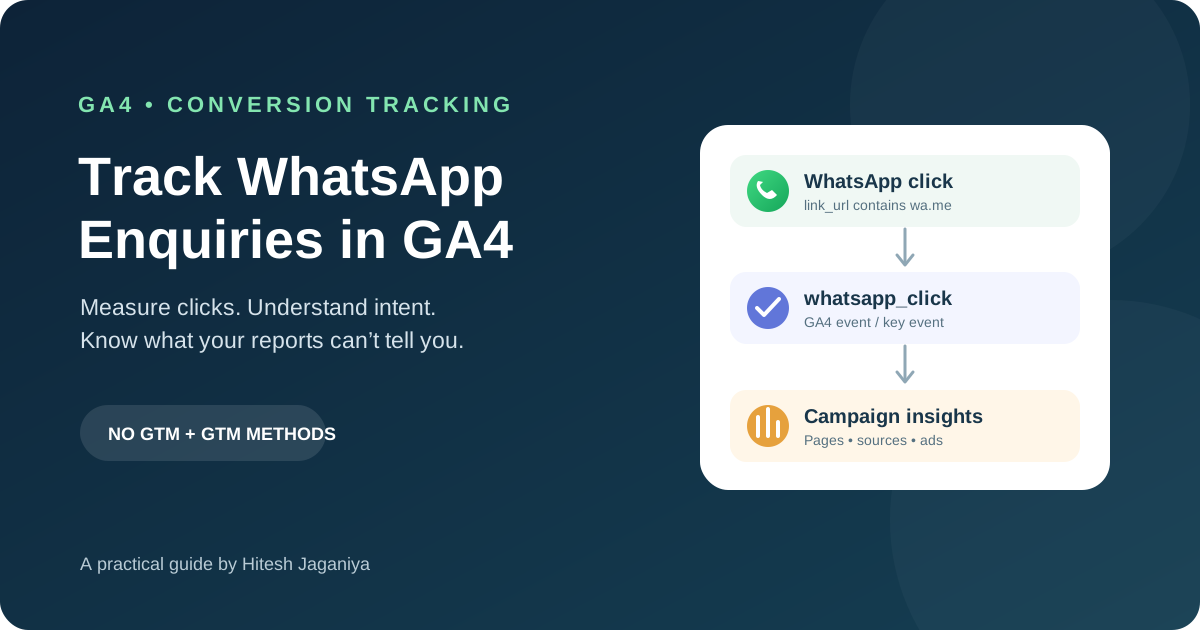
If your WhatsApp button is a standard link such as <a href="https://wa.me/91XXXXXXXXXX">, GA4 can often detect it as an outbound click. You can create a dedicated event from that click.
Step 1: Enable outbound click measurement
Open Admin → Data streams, select your web data stream, and check Enhanced Measurement. Make sure Outbound clicks is enabled. GA4 can then send a click event with parameters such as link_url and link_domain.
Step 2: Create a dedicated event
Go to Admin → Events → Create event, then use these matching conditions:
whatsapp_clickevent_name equals clicklink_url contains wa.meKeep “Copy parameters from the source event” enabled so page context and other useful parameters carry over. Match the URL your site actually uses: some buttons use api.whatsapp.com/send?phone= or web.whatsapp.com rather than wa.me. If your site uses multiple formats, a condition containing whatsapp may be a better match.
Step 3: Mark the event as a key event
In GA4, go to Admin → Key events and mark whatsapp_click as a key event. If it isn't listed yet, trigger the click yourself and check again after the event has been received.
GA4 renamed “Conversions” to Key events. Google Ads still calls its imported actions conversions, so the terminology differs between the products.
Method 2: Track WhatsApp Clicks With Google Tag Manager
Google Tag Manager (GTM) gives you more control over the event name and parameters, and it can help when the website uses more complex click elements.
Step 1: Enable click variables
In GTM, open Variables → Configure and enable Click URL, Click Element, Click Classes, and Click ID.
Step 2: Create a link-click trigger
Create a Click – Just Links trigger. Choose “Some Link Clicks” and set Click URL to contain wa.me. Enable Wait for Tags with a short delay (around 2,000 milliseconds) so the tag has a chance to send before the browser navigates away.
Step 3: Create the GA4 event tag
Create a Google Analytics: GA4 Event tag and set the event name to whatsapp_click. Useful event parameters include:
page_location→{{Page URL}}link_url→{{Click URL}}button_location→{{Click Classes}}, useful when the site has several WhatsApp buttons
Attach the trigger, use GTM Preview to test, and publish only after checking that the event fires correctly. Then mark the event as a key event in GA4.
If the WhatsApp button is not a link
Floating WhatsApp widgets — including some WordPress plugins — may use a div or JavaScript button instead of a standard a href link. In that case, a “Just Links” trigger may not fire. Try an All Elements trigger and match the widget's CSS selector. Inspect the button to identify its class, and test desktop and mobile separately.
Import WhatsApp Clicks Into Google Ads
If you run Google Ads, a key event sitting in GA4 alone won't help Google Ads reporting or bidding. Once the event is firing reliably:
- Link your GA4 property to Google Ads through GA4 Admin → Product links → Google Ads links.
- In Google Ads, open Goals → Conversions and choose Import → Google Analytics 4 properties → Web.
- Select
whatsapp_clickand import it. - Choose whether it should be a Primary or Secondary conversion action. Primary actions are used for Smart Bidding, so only use them as the main optimisation goal if WhatsApp click intent genuinely matches your campaign objective.
Allow roughly 24–48 hours after the first event for imported data to populate. For a deeper look at ad measurement and optimisation, see the guide to Google Ads Quality Score.
What to Do With the Data
Once the event has collected data for a few weeks, look beyond the total click count. Three comparisons are especially useful:
Pages
Find which landing and service pages generate WhatsApp clicks. A less prominent service page may outperform the homepage.
Traffic sources
Compare organic search, paid campaigns, social and referral traffic to see which sources produce intent to contact.
Real chats
Count actual conversations and compare them with clicks to estimate the click-to-conversation ratio.
For example, if 100 website clicks lead to 30 genuine conversations, your business can use that ratio to interpret campaign performance more realistically. It is still an estimate, and it can change with traffic quality, page content and the offer.
If you're new to reporting, read my guide on how to read Google Analytics and Search Console without an agency for the key reports and numbers worth checking.
Common WhatsApp Tracking Problems
The event is not appearing
Check GA4 DebugView first. Confirm the event conditions match the actual URL and that the outbound click measurement or GTM trigger is firing. Standard reports may take 24–48 hours to update.
The event fires on page load
This usually points to an incorrect trigger, such as All Pages, instead of a click trigger. Review the trigger conditions in GTM.
Clicks are counted twice
Both GA4 Enhanced Measurement and a GTM event tag may be recording the same click. Choose one method or carefully configure the event conditions to avoid duplicates.
It works on desktop but not mobile
The mobile widget may use a different element, or the tag may be interrupted during navigation. Test both versions independently.
The click total seems unusually high
Your own testing and repeat clicks can contribute. Consider defining internal traffic in GA4 and filtering it according to your measurement needs.
Frequently Asked Questions
Can GA4 tell me if someone actually sent a WhatsApp message?
No. Website tracking measures the click that opens WhatsApp, not whether a message was sent. Count real conversations in WhatsApp Business or your CRM to measure confirmed enquiries.
Do I need Google Tag Manager to track WhatsApp clicks?
Not always. If the WhatsApp button is a standard link, GA4 Enhanced Measurement and a custom event may be enough. Google Tag Manager is useful for JavaScript widgets and more control over event parameters.
Why can't I find Conversions in GA4?
GA4 uses the term Key events for important actions. Google Ads still uses the term conversions, so the labels differ between the two products.
Will GA4 track Click-to-WhatsApp ads from Meta?
Not when the ad sends people directly from Meta to WhatsApp without visiting your website. Use Meta's reporting for that path; this guide covers WhatsApp clicks made on your website.
How long does WhatsApp click data take to appear?
Use DebugView to check events in near real time. Standard GA4 reports and imported Google Ads conversion data can take around 24–48 hours to populate.
The takeaway
Set up whatsapp_click, test it in DebugView, and compare results by page and traffic source. Just keep the distinction clear: GA4 measures clicks that show intent to contact, while confirmed enquiries need to be counted in WhatsApp or your CRM.